Hello. I am Paul Kinlan.

I lead the Chrome and the Open Web Developer Relations team at Google. Exploring the intersection of modern web design and future-facing technologies.

2 min read

Webmention.app

I love the idea of Webmentions, yet I've not had the time to implement it on my site. At a high-level web mentions let you comment, like and reply to other content on the web and have it be visible to that content without being centralised with tools like Disqus (which I am keen to remove from my site).

Web Mentions are split in to two components, the sender and the receiver. The receiver is the site that I am writing a post about and they might have something on their site that shows inbound links or reactions to their blog; and the sender is, well, me. I need to let the remote site that I have written or reacted to some content that they have created.

The rather awesome Remy Sharp created webmention.app to solve one part of the problem: sending pings. Remy's tool  makes it easy to send 'pings' to potential receivers that I have linked to, by simply calling a CLI script.

I host my blog using Zeit using Hugo and the static-builder tool, so it was relatively trivial for me to add in support for webmention app. I just npm i webmention and then call the CLI version of the tool from my build.sh file - it really is that simple.

Now when I create a post, it should send a quick ping to all new URL's that I have created some content about their site.

Stay in the loop.

I'm trialing a newsletter. Join for monthly insights into web dev, Chrome, and the open web.

alternate_email

Get in touch

Open to chat about Chrome or Web development.

Book a consultation
4 min read

Creating a commit with multiple files to Github with JS on the web

I've created a simple UI for my static site and podcast creator that allows me to quickly post new content. It uses Firebase Auth, EditorJS, Octokat.js, and Zeit's Github integration. This post focuses on committing multiple files to Github using Octokat.js. The process involves getting a reference to the repo and the tip of the master branch, creating blobs for each file, creating a new tree with these blobs, and creating a commit that points to the new tree. The code handles authentication, creates blobs for images, audio (if applicable), and markdown content, and then creates the tree and commit. This setup allows me to have a serverless static CMS.
2 min read

Screen Recorder: recording microphone and the desktop audio at the same time

I have a goal of building the worlds simplest screen recording software and I've been slowly noodling around on the project for the last couple of months (I mean really slowly).

In previous posts I had got the screen recording and a voice overlay by futzing about with the streams from all the input sources. One area of frustration though was that I could not work out how to get the audio from the desktop and overlay the audio from the speaker. I finally worked out how to do it.

Firstly, getDisplayMedia in Chrome now allows audio capture, there seems like an odd oversight in the Spec in that it did not allow you to specify audio: true in the function call, now you can.

const audio = audioToggle.checked || false;
desktopStream = await navigator.mediaDevices.getDisplayMedia({ video:true, audio: audio });

Secondly, I had originally thought that by creating two tracks in the audio stream I would be able to get what I wanted, however I learnt that Chrome's MediaRecorder API can only output one track, and 2nd, it wouldn't have worked anyway because tracks are like the DVD mutliple audio tracks in that only one can play at a time.

The solution is probably simple to a lot of people, but it was new to me: Use Web Audio.

It turns out that WebAudio API has createMediaStreamSource and createMediaStreamDestination, both of which are API's needed to solve the problem. The createMediaStreamSource can take streams from my desktop audio and microphone, and by connecting the two together into the object created by createMediaStreamDestination it gives me the ability to pipe this one stream into the MediaRecorder API.

const mergeAudioStreams = (desktopStream, voiceStream) => {
  const context = new AudioContext();
    
  // Create a couple of sources
  const source1 = context.createMediaStreamSource(desktopStream);
  const source2 = context.createMediaStreamSource(voiceStream);
  const destination = context.createMediaStreamDestination();
  
  const desktopGain = context.createGain();
  const voiceGain = context.createGain();
    
  desktopGain.gain.value = 0.7;
  voiceGain.gain.value = 0.7;
   
  source1.connect(desktopGain).connect(destination);
  // Connect source2
  source2.connect(voiceGain).connect(destination);
    
  return destination.stream.getAudioTracks();
};

Simples.

The full code can be found on my glitch, and the demo can be found here: https://screen-record-voice.glitch.me/

4 min read

Extracting text from an image: Experiments with Shape Detection

I had a little down time after Google IO and I wanted to scratch a long-term itch I've had. I just want to be able to copy text that is held inside images in the browser. That is all. I think it would be a neat feature for everyone.

It's not easy to add functionality directly into Chrome, but I know I can take advantage of the intent system on Android and I can now do that with the Web (or at least Chrome on Android).

Two new additions to the web platform - Share Target Level 2 (or as I like to call it File Share) and the TextDetector in the Shape Detection API - have allowed me to build a utility that I can Share images to and get the text held inside them.

The basic implementation is relatively straight forwards, you create a Share Target and a handler in the Service Worker, and then once you have the image that the user has shared you run the TextDetector on it.

The Share Target API allows your web application to be part of the native sharing sub-system, and in this case you can now register to handle all image/* types by declaring it inside your Web App Manifest as follows.

"share_target": {
  "action": "/index.html",
  "method": "POST",
  "enctype": "multipart/form-data",
  "params": {
    "files": [
      {
        "name": "file",
        "accept": ["image/*"]
      }
    ]
  }
}

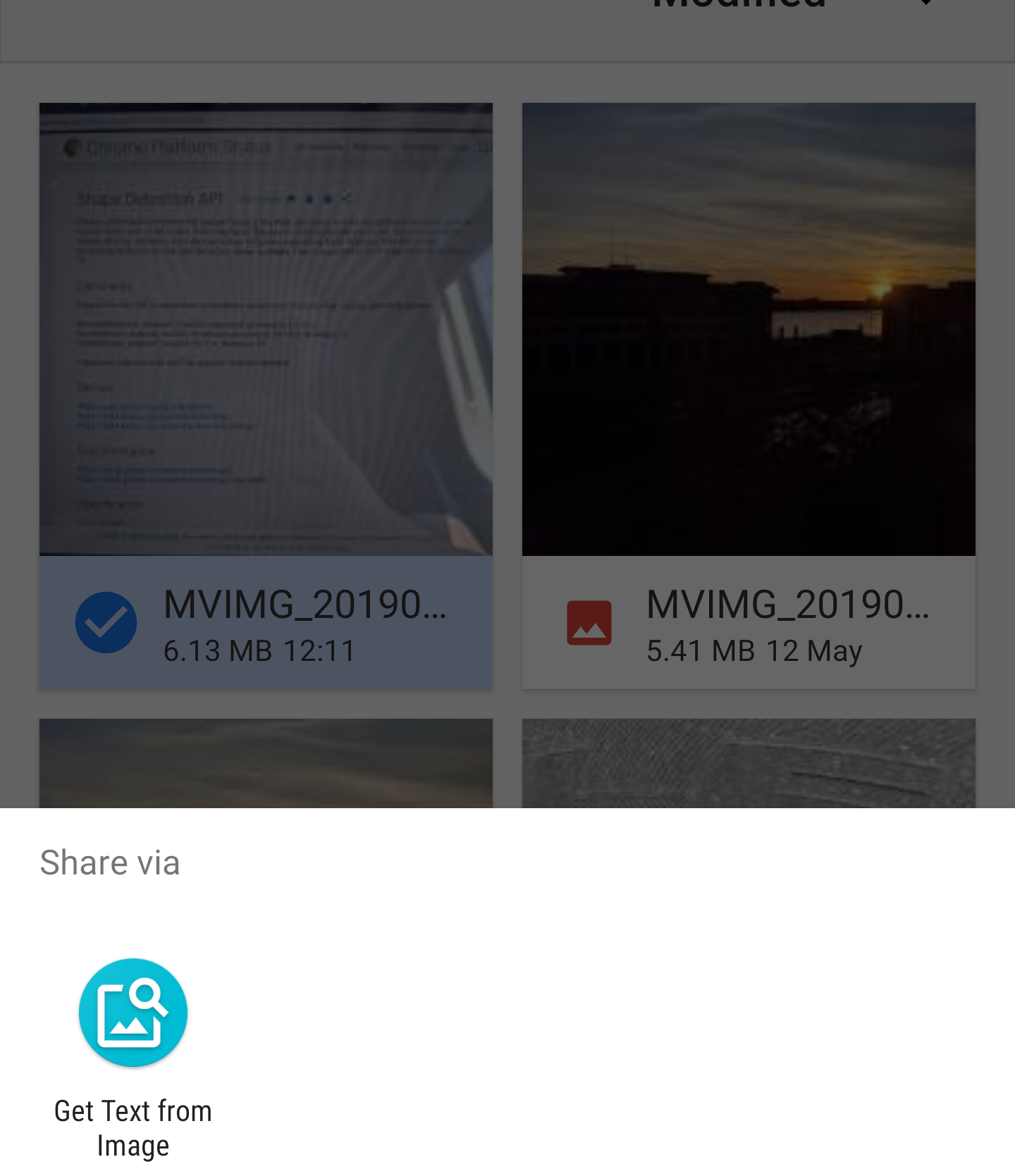
When your PWA is installed then you will see it in all the places where you share images from as follows:

The Share Target API treats sharing files like a form post. When the file is shared to the Web App the service worker is activated the fetch handler is invoked with the file data. The data is now inside the Service Worker but I need it in the current window so that I can process it, the service knows which window invoked the request, so you can easily target the client and send it the data.

self.addEventListener('fetch', event => {
  if (event.request.method === 'POST') {
    event.respondWith(Response.redirect('/index.html'));
    event.waitUntil(async function () {
      const data = await event.request.formData();
      const client = await self.clients.get(event.resultingClientId || event.clientId);
      const file = data.get('file');
      client.postMessage({ file, action: 'load-image' });
    }());
    
    return;
  }
  ...
  ...
}

Once the image is in the user interface, I then process it with the text detection API.

navigator.serviceWorker.onmessage = (event) => {  
  const file = event.data.file;
  const imgEl = document.getElementById('img');
  const outputEl = document.getElementById('output');
  const objUrl = URL.createObjectURL(file);
  imgEl.src = objUrl;
  imgEl.onload = () => {
    const texts = await textDetector.detect(imgEl);
    texts.forEach(text => {
      const textEl = document.createElement('p');
      textEl.textContent = text.rawValue;
      outputEl.appendChild(textEl);
    });
  };
  ...
};

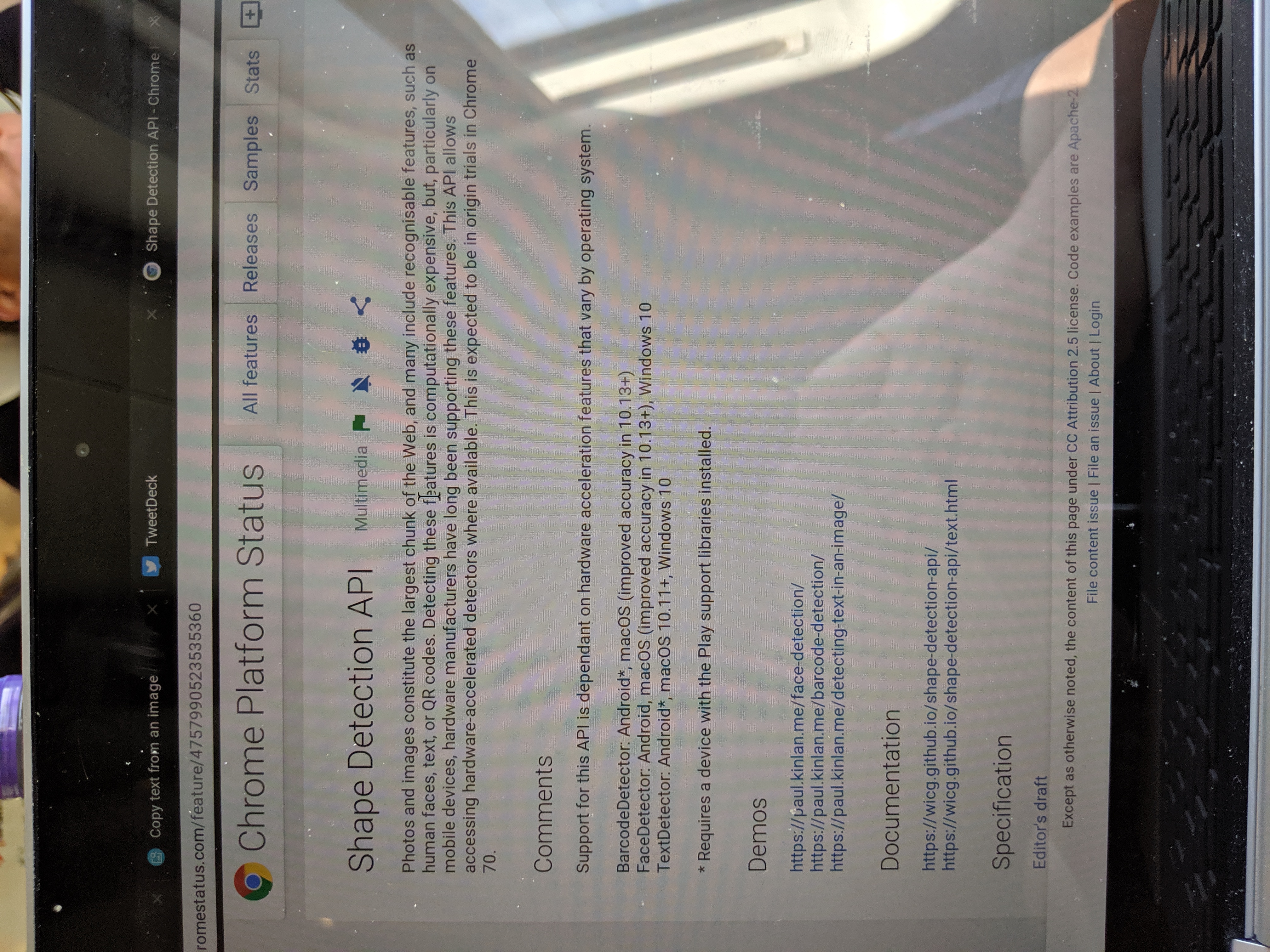
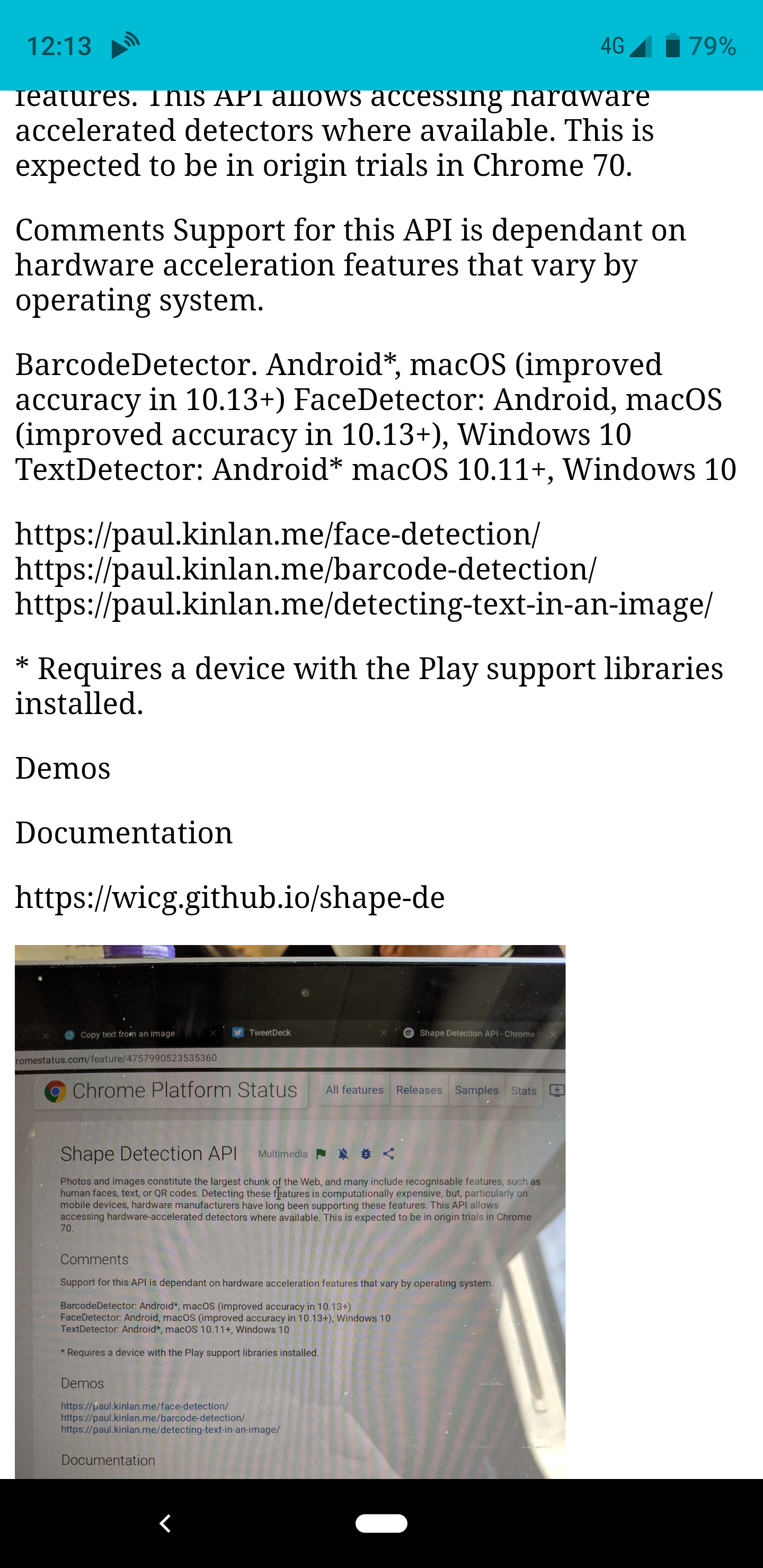
The biggest issue is that the browser doesn't naturally rotate the image (as you can see below), and the Shape Detection API needs the text to be in the correct reading orientation.

I used the rather easy to use EXIF-Js library to detect the rotation and then do some basic canvas manipulation to re-orientate the image.

EXIF.getData(imgEl, async function() {
  // http://sylvana.net/jpegcrop/exif_orientation.html
  const orientation = EXIF.getTag(this, 'Orientation');
  const [width, height] = (orientation > 4) 
                  ? [ imgEl.naturalWidth, imgEl.naturalHeight ]
                  : [ imgEl.naturalHeight, imgEl.naturalWidth ];

  canvas.width = width;
  canvas.height = height;
  const context = canvas.getContext('2d');
  // We have to get the correct orientation for the image
  // See also https://stackoverflow.com/questions/20600800/js-client-side-exif-orientation-rotate-and-mirror-jpeg-images
  switch(orientation) {
    case 2: context.transform(-1, 0, 0, 1, width, 0); break;
    case 3: context.transform(-1, 0, 0, -1, width, height); break;
    case 4: context.transform(1, 0, 0, -1, 0, height); break;
    case 5: context.transform(0, 1, 1, 0, 0, 0); break;
    case 6: context.transform(0, 1, -1, 0, height, 0); break;
    case 7: context.transform(0, -1, -1, 0, height, width); break;
    case 8: context.transform(0, -1, 1, 0, 0, width); break;
  }
  context.drawImage(imgEl, 0, 0);
}

And Voila, if you share an image to the app it will rotate the image and then analyse it returning the output of the text that it has found.

It was incredibly fun to create this little experiment, and it has been immediately useful for me. It does however, highlight the inconsistency of the web platform. These API's are not available in all browsers, they are not even available in all version of Chrome - this means that as I write this article Chrome OS, I can't use the app, but at the same time, when I can use it... OMG, so cool.

1 min read

Sakura

This photo features a beautiful Yaezakura cherry blossom, a specific type of sakura known for its many layered petals. The image captures the delicate pink blossoms, celebrating the beauty of spring in Japan.
2 min read

Debugging Web Pages on the Nokia 8110 with KaiOS using Chrome OS

This blog post provides a guide on how to debug web pages on the Nokia 8110 (KaiOS) using Chrome OS with Crostini (m75 or later). It builds upon a previous post about using Web IDE for debugging KaiOS devices but focuses on using a Chrome OS environment. The guide outlines the necessary steps, including enabling Crostini USB support, installing required packages like USB tools, ADB, and Fastboot, and configuring udev rules to allow Chrome OS to recognize the Nokia 8110. The post includes commands for installing dependencies and verifying device connectivity.

1 min read

New WebKit Features in Safari 12.1 | WebKit

Big updates for the latest Safari!

I thought that this was a pretty huge announcement, and the opposite of Google which a while ago said that Google Pay Lib is the recommend way to implement payments... I mean, it's not a million miles away, Google Pay is built on top of Payment Request, but it's not PR first.

Payment Request is now the recommended way to pay implement Apple Pay on the web.

Read full post.

And my favourite feature given my history with Web Intents.

Web Share API

The Web Share API adds navigator.share(), a promise-based API developers can use to invoke a native sharing dialog provided the host operating system. This allows users to share text, links, and other content to an arbitrary destination of their choice, such as apps or contacts.

Now just to get Share Target API and we are on to a winner! :)

3 min read

Offline fallback page with service worker

Years ago, I did some research into how native applications responded to a lack of network connectivity. Whilst I've lost the link to the analysis (I could swear it was on Google+), the overarching narrative was that many native applications are inextricably tied to the internet that they just straight up refuse to function. Sounds like a lot of web apps, the thing that set them apart from the web though is that the experience was still 'on-brand', Bart Simpson would tell you that you need to be online (for example), and yet for the vast majority of web experiences you get a 'Dino' (see chrome://dino).

We've been working on Service Worker for a long time now, and whilst we are seeing more and more sites have pages controlled by a Service Worker, the vast majority of sites don't even have a basic fallback experience when the network is not available.

I asked my good chum Jake if we have any guindance on how to build a generic fall-back page on the assumption that you don't want to create an entirely offline-first experience, and within 10 minutes he had created it. Check it out.

For brevity, I have pasted the code in below because it is only about 20 lines long. It caches the offline assets, and then for every fetch that is a 'navigation' fetch it will see if it errors (because of the network) and then render the offline page in place of the original content.

addEventListener('install', (event) => {
  event.waitUntil(async function() {
    const cache = await caches.open('static-v1');
    await cache.addAll(['offline.html', 'styles.css']);
  }());
});

// See https://developers.google.com/web/updates/2017/02/navigation-preload#activating_navigation_preload
addEventListener('activate', event => {
  event.waitUntil(async function() {
    // Feature-detect
    if (self.registration.navigationPreload) {
      // Enable navigation preloads!
      await self.registration.navigationPreload.enable();
    }
  }());
});

addEventListener('fetch', (event) => {
  const { request } = event;

  // Always bypass for range requests, due to browser bugs
  if (request.headers.has('range')) return;
  event.respondWith(async function() {
    // Try to get from the cache:
    const cachedResponse = await caches.match(request);
    if (cachedResponse) return cachedResponse;

    try {
      // See https://developers.google.com/web/updates/2017/02/navigation-preload#using_the_preloaded_response
      const response = await event.preloadResponse;
      if (response) return response;

      // Otherwise, get from the network
      return await fetch(request);
    } catch (err) {
      // If this was a navigation, show the offline page:
      if (request.mode === 'navigate') {
        return caches.match('offline.html');
      }

      // Otherwise throw
      throw err;
    }
  }());
});

That is all. When the user is online they will see the default experience.

And when the user is offline, they will get the fallback page.

I find this simple script incredibly powerful, and yes, whilst it can still be improved, I do believe that even just a simple change in the way that we speak to our users when there is an issue with the network has the ability to fundamentally improve the perception of the web for users all across the globe.

Update Jeffrey Posnick kinldy reminded me about using Navigation Preload to not have to wait on SW boot for all requests, this is especially important if you are only controlling failed network requests.