
We've been doing a lot of development on feature phones recently and it's been hard, but fun. The hardest bit is that on KaiOS we found it impossible to debug web pages, especially on the hardware that we had (The Nokia 8110). The Nokia is a great device, it's built with KaiOS which we know is based on something akin to Firefox 48, but it's locked down, there is no traditional developer mode like you get on other Android devices, which means you can't connect Firefox's WebIDE easily.
Through a combination of reading a couple of blogs, and knowing a bit about adb I worked out how to do it. Note, others might have been able to do it, but it's not documented in one place cleanly.
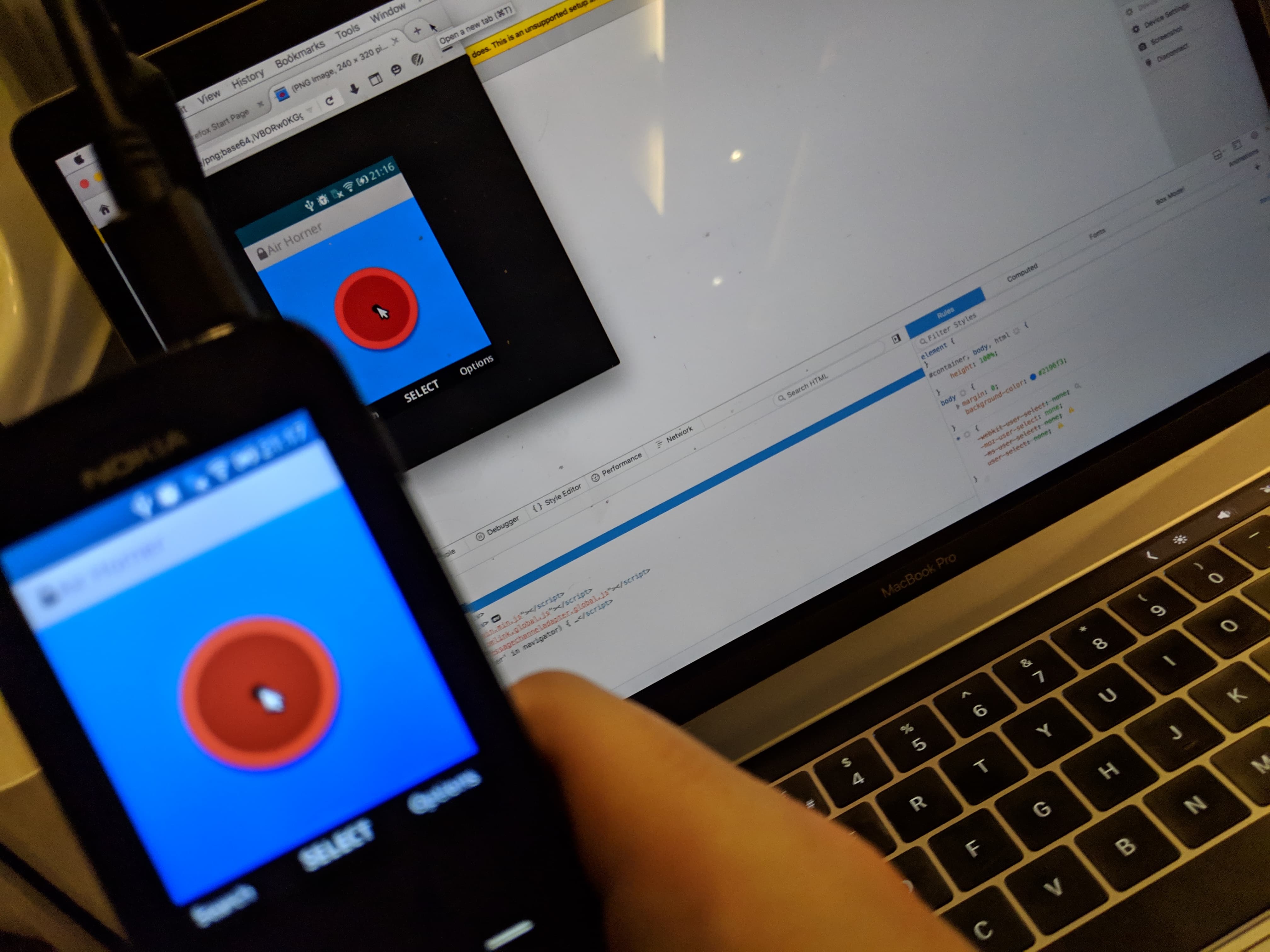
(Image above shows the DevTools and also the output of the screenshot tool)
Here are the steps:
- Connect a USB cable. Ensure you have
adbinstalled on your main machine. - Download a copy of Firefox 48 (this is the only one I could get to work)
- Enable 'Developer Mode' by entering
*#*#33284#*#*from your phone (note, don't use the dialer). You will see a little 'bug' icon on the top of the screen. [Source] - Attach your USB cable
- On your development machine run the following commands
adb start-serveradb devicesto check your phone is connected.adb forward tcp:6000 localfilesystem:/data/local/debugger-socketthis sets up a channel from your machine to a socket on the phone. This is what Web IDE uses.
- Start
Web IDEby opening Firefox, go to Tools and then Web IDE - Web IDE will be open, click 'Remote Runtime' and click the open button that has 'localhost:6000' in. (this is the tcp forwarding port).
- Open a page on the phone, and you should see it on the left. Voila.